Chapter 10
Dreamwalkers
A Dreamwalker is a performer in your Dream. You record a real performance in VR, with body, voice and face, and the Dreamwalker plays it back in your world on any avatar you choose. Four tracks direct it over time, and visitors can even pose it with their hands.
The shortest path to a performer on stage#
Four things, and a performer plays. Everything else in this chapter refines them.
- Press Add Dreamwalker in the Dreamwalkers section.
- Set Puppet to a Humanoid avatar in your scene.
- Add a Presence node to the timeline and set its Dreamwalker to the one you just made.
- Set Recording on that node, or open its Record in VRChat section and record in the world.
Only one of those four leaves the stage empty. With no Puppet nothing appears at all. With a Puppet but no Recording the performer is there, standing still. Knowing which of the two you are looking at tells you which field to go and fix.
Adding a Dreamwalker#
Open the Dreamwalkers section in the editor and press Add Dreamwalker.

Each Dreamwalker has:
- Puppet. The avatar that performs. Drop a humanoid avatar here. When you drop one in, Dreamer Pro checks it and offers fixes: leftover components with no script and a Remove them button, Optimize Game Objects with a Turn it off button, materials whose shader is missing, and the PhysBone count with an option to let users grab them.

- Quest avatar. A Dreamwalker can carry a different avatar for Quest. Turn on "This avatar has a Quest version" and a second slot appears. Parts you pick in a Toggles node on one avatar carry over to the other when the names match.

- Disable puppet when user is in close proximity, with Hide within (meters). The performer disappears the moment a viewer comes closer than that distance. A performer you may pose does not hide while it is shown for you.

- Only show for one viewer, with Viewer Name. The performer's body shows for one named person only. Its voice is still heard by everyone.

- Pause performance while not present. The recording pauses between Presence windows and resumes where it left off. With no Presence nodes it never pauses.

- Anchor position to record origin and Anchor rotation to record origin. Off, the performance plays where the Dreamwalker stands in your scene, facing the way it faces there. On, it plays exactly where and how it was recorded.

Older Dreams may show more buttons. "Move to its node" moves a Dreamwalker-wide recording onto its Presence node, the current way of working. "Stop hosting" clears a hosted clip link. Hosting is no longer supported. Above the list, "Convert to Pose nodes" turns the old Dream-wide posing switch into one Mechanics node per performer, and "Forget it" drops that old switch without making any nodes.
Recording a performance#
You record from a Presence node. There is no arm button. While the node's Properties are open, the node is the one that takes the next recording.
- Add a Presence node on the timeline and pick its Dreamwalker.
- Open the node's Record in VRChat section. The first time, it asks "Let Dreamer Pro pick up your recordings?" and says what it reads. Press Yes, watch for recordings. The section then shows which log it is watching.
- In VRChat, in a recording world with the Dreamer recording panel, press Record on the panel. The node grows on the timeline as you perform. Pause on the panel skips the wait out of the take, and Record again continues it.
- Press End on the panel. The recording is saved under Assets/Dream Recordings and put on the node.

End here in Dreamer Pro is the rescue for when the world's End never arrives. Open the recording's folder shows the saved files. Close the section, or select another node, and nothing is read.
Takes in this log lists the takes VRChat has already written on this computer. Put this take on the node puts one of them on the node; it carries the movement only. Look again refreshes the list.
Recording over a node that already has a take. Put the playhead at the node's start, or outside it, and the new take replaces the old one. Put the playhead in the middle of the node before you press Record, and when the take is done Dreamer Pro asks: From the playhead keeps what comes before the playhead and makes the new take the part after; Replace all of it does what it says.
Voice. The microphone listens while the Record in VRChat section is open, so the first word of a take is never lost, and nothing it hears is saved until you press Record in VRChat. Pick the Microphone, set the Recording volume, leave Normalize on save on, and turn on Monitor to hear yourself. Monitoring needs an Audio Listener in the scene. The Main Camera usually has one. If the volume clips, the panel says so; what has clipped stays clipped, so lower it and record again. The voice lands on the Sound track as a row linked to the node. See the Sound and Voice chapter.
Face. Face tracking and lip sync are read from VRChat on the same computer and recorded with the motion. In VRChat, open the Action Menu, then Options, then OSC, and turn it on. If nothing arrives, the Face section offers "Read VRChat's port 9001 directly". Any avatar whose face has the standard face-tracking or lip-sync shapes plays them back.
What Dreamer Pro reads from your computer#
When you record in VRChat, VRChat writes the performance into its own log file on your computer. That file is the only way a recording reaches Dreamer Pro.
Dreamer Pro reads it only when all of these hold: you answered Yes, watch for recordings; the Dreamer Pro window is open; a Presence node's Record in VRChat section is showing; and that node has a Dreamwalker. Close the section, select another node, or close the window, and the reading stops. It keeps only the recording lines. The log also holds ordinary session details, like the worlds you visited and who was there. None of that is kept.
The microphone listens while the section is open, and saves only from the moment you press Record in VRChat until the take ends. Face tracking travels from VRChat to Dreamer Pro inside your computer. So that VRChat can find it, Dreamer Pro announces its name on your local network; the face data itself never leaves your computer.
Nothing is sent anywhere. A recording leaves your computer only when you put it somewhere yourself: inside a .dream file you hand to someone, or in a world you upload. A .dream file carries the recording it made, never VRChat's log.
Your answer is kept on this computer and never travels with a Dream. Change it any time in Preferences, under Dreamer Pro: Pick up recordings from VRChat's log.
Recording with more than one person#
Two performers can record one scene together. Both need Dreamer Pro.
- Stand in the same world instance. Each of you opens a Presence node's Record in VRChat section in your own Dreamer Pro.
- Each of you presses Record on the panel in the world, performs, and presses End. Each take lands in its own Dreamer Pro.
- The other performer records into a Dream with nothing else in it, then exports it as a .dream file. See the Dream files chapter.
- Add that file to your Dream. Import Dream asks Replace or Add; choose Add. Their Dreamwalker, their Presence node and their voice arrive on lanes of their own, and nothing already on your timeline changes.
A recording made at the same time as one of yours lines up with it. The added node moves so the same moment of both performances plays at the same time, and the report says so.
Mouth from voice. A take with no face data can get a mouth made from its own voice. The Mouth section in the Recording panel does this. The lip-sync tool it uses is part of Dreamer Pro and installs itself the first time, once per computer.
The recording on the node#
Every Presence node carries its own recording, shown in its Recording field. The same Dreamwalker can play different takes on different nodes. Where two nodes for the same performer overlap, the later start plays.
- A Presence node cannot be dragged longer than its recording.
- In point. Where in the recording the node starts. Drag the node's left edge and the In point moves with it, so you can trim the start of a take.
- Split at playhead, S, cuts a node in two. The second half starts where the first left off.
- Smooth movement. Eases each joint toward the recording instead of snapping to it, hiding tracker shake. 0 plays exactly as recorded. Higher is smoother and a touch behind the beat.

- Show before the dream starts. For a node that touches the very start. Off, the performer stays off stage until the Dream begins. On, they stand at the recording's first frame while the room waits.

- A preview of the performer sits under the recording rows, on its own with nothing else from the scene, so a take is easy to judge. It follows the performer as they move about and keeps them centred. Drag with the right mouse button to turn, scroll to zoom. Front, Back, Left, Right and Top square the view up. Bones shows the skeleton instead of the avatar.
A take that starts lying down, leaning or crouched plays that way.
The four tracks#
Every node on these tracks picks which Dreamwalker it directs from a dropdown. All four draw in the same color because they act on the same thing.
Presence. When the performer is on stage, and which recording plays. No Presence nodes at all means the performer is there from the start.
Toggles. Turn parts of the performer off and on for a stretch. Mode, at the top of the node, picks who does the turning. Author Toggle: the parts you set turn off or on for everyone while the node plays. Viewer Toggle: a panel appears in the world while the node plays, and each viewer flips the parts for themselves, so what you set is only how each switch starts. In Viewer Toggle a Viewer Panel section lists the rows the panel will carry. Rename a row there and the panel shows the new name; the object keeps its own. Remove takes a row off the panel, and Removed from the panel holds what you took off, with Restore, Restore all, and Forget for a part that no longer exists. Panel title names the panel in the world; empty, it uses the Dreamwalker's name. A name too long for its row ends in three dots. Keep what the viewer chose, on by default, carries a viewer's flips from one node to the next node of the same Dreamwalker, matched by the part they switch; turn it off on a node that must start exactly as you set it, such as a costume change. The node lists the avatar's whole hierarchy. Open the arrows as deep as you need. Off or On holds a part there while the node plays. Leave both unlit to leave the part alone. Clothes, hair, accessories and props can be toggled wherever they sit. The whole puppet, its armature and its bones have no toggle; use Presence for the whole performer. Everything returns to how the scene had it when the node ends.

Mechanics. The performer reacts to each viewer.
- Point Eyes At User and Point Head At User. Natural, limited tracking. The head turns toward you but never spins around.

- Body Follow User. The whole performer turns, flat and never tilting, to face you. It is off while that Dreamwalker's "Anchor rotation to record origin" is on, since both steer the body's facing.

- Pose. See Posing below.
Everything eases in and out. Each viewer's game applies these locally, so with eye or head tracking on, each viewer sees the performer looking at them. There is no single shared gaze.
Motion. Move the performer from one place to another.

- Walk is a range node. The performer walks to the destination with real footwork, arriving by the node's end. Walk works on level ground: a destination above or below the start is an error, and the world flattens it. A walk that would need more than 2.2 metres a second is an error too.
- Destination. Where it walks to, as a World Position. Under it, a button turns the preview on so you can drag the destination disc in the Scene view. With the preview already on the button is gone and a line tells you to drag the disc.

- Arrival Facing. The angle in degrees the performer faces when it arrives.

- The walking path. With Preview on, click the path line in the Scene view and drag to bend it. Ctrl-click a bend to remove it. Straighten Path clears them all, and Bend Points shows how many there are.
- Walking Style and Arm Motion. "Force normal walk" and the Arm Motion choice shape the walk.

- Walking Speed. How fast the performer will move, worked out from the path and the node's length.

- Teleport is a point node. At its start the performer snaps to the destination.
- Where the performer lands stays until another Motion node moves it.
Presence is an extra gate on top of a Cue. If a Cue also shows and hides the same avatar, the performer is visible only where both windows overlap. Most shows want one or the other.
Posing#
Turn on "Watchers can pose this performer" on a Mechanics node. While that node plays, a visitor in VR can bring a hand near the performer's head, a hand, a foot, a knee or the hips, see a small bubble inside the part, and squeeze the grip to take it. Only the part they hold is theirs. A performer waving carries on waving. Joints bend the way a body bends, never past straight. A hips grab moves the hips while the feet stay planted.
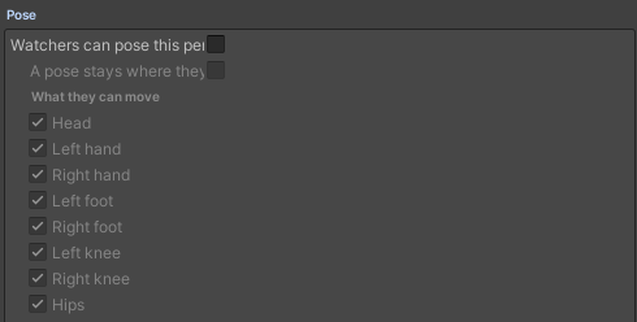
- "A pose stays where they put it". Off, the performer eases back into the recording about a second after the visitor lets go. On, the pose stays until someone moves it again.
- "Watchers can leave a part where they put it". On, a visitor holding a part can pull the trigger to leave it standing, and take hold of it again to free it. Greyed while "A pose stays where they put it" is on, since everything stays then.
- "What they can move" picks the parts.
- When the node ends, the pose clears.
Posing needs VR hands. Desktop cannot pose. In a Shared Dream, everyone in step with the room sees each other's poses; someone dreaming on their own keeps theirs to themselves. A performer you may pose does not hide when you stand close.
Quest#
A performer whose recording is still being checked stays off stage until it passes. Every recording loads and plays on Quest. At most three performers animate at once. Any others are still on stage, left exactly as the scene had them, until one of the three leaves. A performer that has not moved yet stands in its rest pose. A Dream that shows one performer per slide never notices.